
Drop it on a slice.
Citrus converts files mid-drag, on your own PC. Press Shift, Ctrl or Alt, a wheel opens around the file, let go on the format you need. Nothing is uploaded.
Pick a fruit, or press Shift Ctrl Alt on your keyboard.
No app to open.
Citrus waits in the system tray, next to the clock, and only shows up when you are already dragging a file somewhere.
Pick up a file from Explorer, the desktop, a download bar, anywhere you can drag from.
Tap Shift Ctrl or Alt for Convert, Tools or Actions. A wheel of slices opens around the pointer and stays open after you let go of the key.
Let go on a slice. A new copy lands next to the original, or in a folder you pick in Settings. A long job can be cancelled from its toast.
Explorer reads those keys too
In Explorer, Shift, Ctrl and Alt choose between move, copy and link. Once the wheel is open, Citrus is the drop target, so it always copies and never moves the original. Change the keys in Settings.
Not dragging? Right-click.
There is no keyboard shortcut yet. Select files in Explorer, open the context menu and pick Citrus › Convert, Tools or Actions; the same wheel opens without a drag.
Or right-click it.
Citrus adds itself to Explorer’s context menu, for files and folders alike. Pick a wheel there and it opens on your selection, no drag needed.
- Windows 10
- Right-click › Citrus › Convert, Tools or Actions.
- Windows 11
- The same, under Show more options (or Shift+F10).
- Many files
- Select them all first; the wheel takes the whole selection.
photo.jpg
It lives in the system tray.
No window and no taskbar button. The tray icon opens Settings, where you change the keys, the output folder and the helpers it uses. It starts with Windows; switch that off there too.
ShiftConvert
Tap Shift mid-drag for a new format. The wheel only shows what makes sense for the file in your hand: a photo gets image formats, a PDF gets documents.
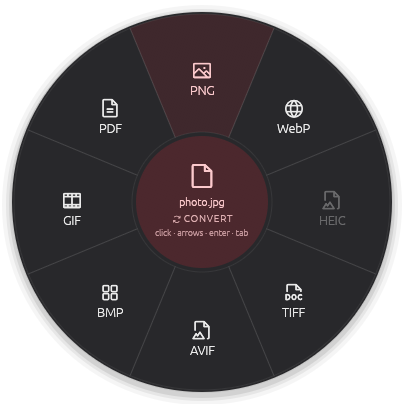
- JPG/
- PNG/
- WebP/
- TIFF/
- AVIF/
- GIF/
- BMP/
- PDF/
- DOCX/
- PPTX/
- XLSX/
- CSV/
- TSV/
- JSON/
- Markdown/
- TXT/
- RTF/
- HTML/
- EPUB/
- ODT/
- SRT/
- VTT/
- ZIP/
- TAR/
- GZIP/
- HEIC/
- MP4/
- MOV/
- MKV/
- WebM/
- AVI/
- WMV/
- M4A/
- WAV/
- AIFF/
- MP3/
- FLAC/
- OGG/
- Opus/
- WMA
Built inWith a free helper, mostly ffmpeg. Missing helpers grey out their slices.
The full chart what goes in, what comes out
| Kind | Takes | Turns into |
|---|---|---|
| Images | JPG PNG WebP TIFF BMP GIF SVG, HEIC AVIF |
|
| Audio | Anything ffmpeg reads |
|
| Video | Anything ffmpeg reads |
|
| ||
| Documents | DOCX RTF TXT Markdown HTML EPUB ODT, DOC |
|
| Slides | PPTX PPT ODP |
|
| Spreadsheets | XLSX CSV TSV XLS ODS |
|
| Subtitles | SRT VTT |
|
| Archives | ZIP TAR GZ BZ2 XZ, RAR 7z, any file or folder |
|
The helpers are ffmpeg (all audio and video, and reading HEIC and AVIF), heif-enc (saving HEIC), poppler or MuPDF (PDF pages to images and slides), pandoc (richer documents), qpdf, Tesseract, rembg, and 7-Zip or unar. LibreOffice handles slides and the older Office formats. The original is never modified.
CtrlTools
Tap Ctrl mid-drag and the wheel fills with small edits for the file in your hand. Each one writes a new file beside it with a plain suffix; the original stays as it was.
AltActions
Tap Alt mid-drag to do something with the file itself instead of making a new one.
Send with LocalSend, Copy, Move, Copy Path, open a Terminal there, Reveal in Explorer, Trash. The Float shelf is greyed out for now.
An early port, said plainly.
The Windows build is written in Rust, built and unit-tested, and checked to compile, but it has not been run on a real Windows desktop yet. Try it if you like rough edges, and back up what you convert.
Built
- The three wheels, read from the same catalog as the Mac app.
- Opening the wheel mid-drag with Shift, Ctrl or Alt.
- Citrus › Convert, Tools and Actions in Explorer’s context menu.
- Every converter and tool except the editors, with the helpers you have.
- Sending with LocalSend, the tray icon, Settings and starting at login.
- The citrus command line, checked by the same conformance suite as the Mac.
Not yet
- The Crop, Trim and Add background editors and the Float shelf are greyed out.
- No keyboard mode yet; the file manager menu covers the same need.
- LocalSend receivers that ask for a PIN are declined.
- No installers yet: plain .zip and .tar.gz archives, without helpers bundled.
- Built and unit-tested, and checked to compile for both, but not yet run on a real Windows or Linux desktop.
Citrus started on the Mac, where it is a native Swift app. The port shares its catalog of slices and its command line.
Supports  LocalSend.
There is no AirDrop here. Instead Citrus speaks LocalSend, the free, open-source app for sharing files nearby. Install LocalSend on the phone or computer you send to; Citrus does the sending.
- Open LocalSend over there. On the phone or computer that should get the file. It announces itself on your network.
- Drop on LocalSend. Drag a file, tap Alt, let go on the LocalSend slice. The wheel turns into the devices around you; pick one.
- They accept in LocalSend. The app asks first, then saves the file. Progress shows in the Citrus toast, and its close button cancels.
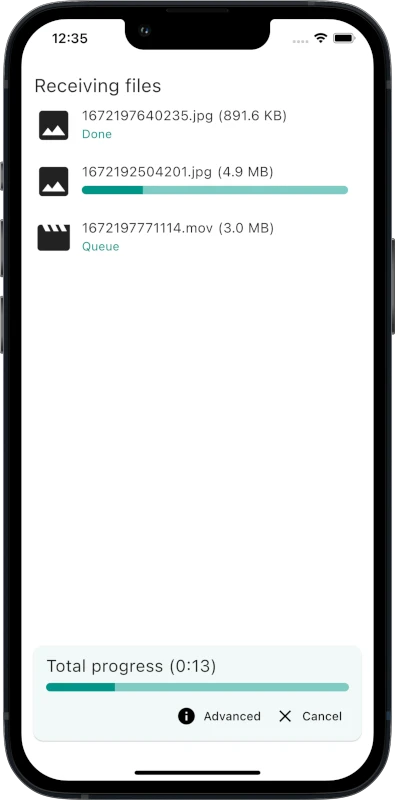
Only sends. Citrus never receives files; LocalSend itself does that. Folders go as their files.
The real protocol. LocalSend v2: found by multicast, sent over HTTPS on port 53317. No server, no account.
Your name on it. Set the name LocalSend shows for you, and the port, in Settings › LocalSend.
No PIN prompt yet. Receivers that ask for a PIN are declined for now; the rest work as on a Mac.
LocalSend is free software by the LocalSend contributors, Apache-2.0. Logo and screenshot from github.com/localsend/localsend and localsend.org. Citrus is not affiliated with LocalSend.
Nothing leaves your computer.
Every conversion runs on the machine the file is already on, and the copy lands in the same folder. Drop any file on the folder to see where.
- No uploads.
- No server, no account, no queue. The system’s frameworks do the work, with the helpers you choose to install.
- Originals stay put.
- Output is always a new copy beside the original, or in a folder you pick in Settings. Nothing is moved or overwritten.
- Sending stays home.
- LocalSend goes device to device over your own network, and only after the other side accepts.
- No snooping permissions.
- On a Mac the default flow needs neither Accessibility nor Input Monitoring. On Windows, no hooks.
- holiday.heic
- holiday.jpg
- invoice.pdf
Drop a file here
0 bytes of it sent anywhere. This page reads a dropped file’s name and size, and nothing else.
Open source, and early.
No installer yet. Each tagged version will come as a plain .zip archive, without helpers bundled.
Windows Coming soon.zip, Windows 10 and 11
Runs from the system tray, with the same three wheels as the Mac app.
The source Coming soonMIT
Written in Rust, built from the same catalog of slices as the Mac app.
The helpers it usesmissing ones grey out their slices
ffmpeg, LibreOffice, pandoc, Tesseract and 7-Zip. Also used when found: poppler, qpdf, heif-enc and rembg.